The Basics
Vector Art vs. Raster Art
Two completely different ways a computer stores an image — and the difference matters a lot when it comes to printing on shirts, hats, and gear.
Vector Art
Built with math — infinitely scalable
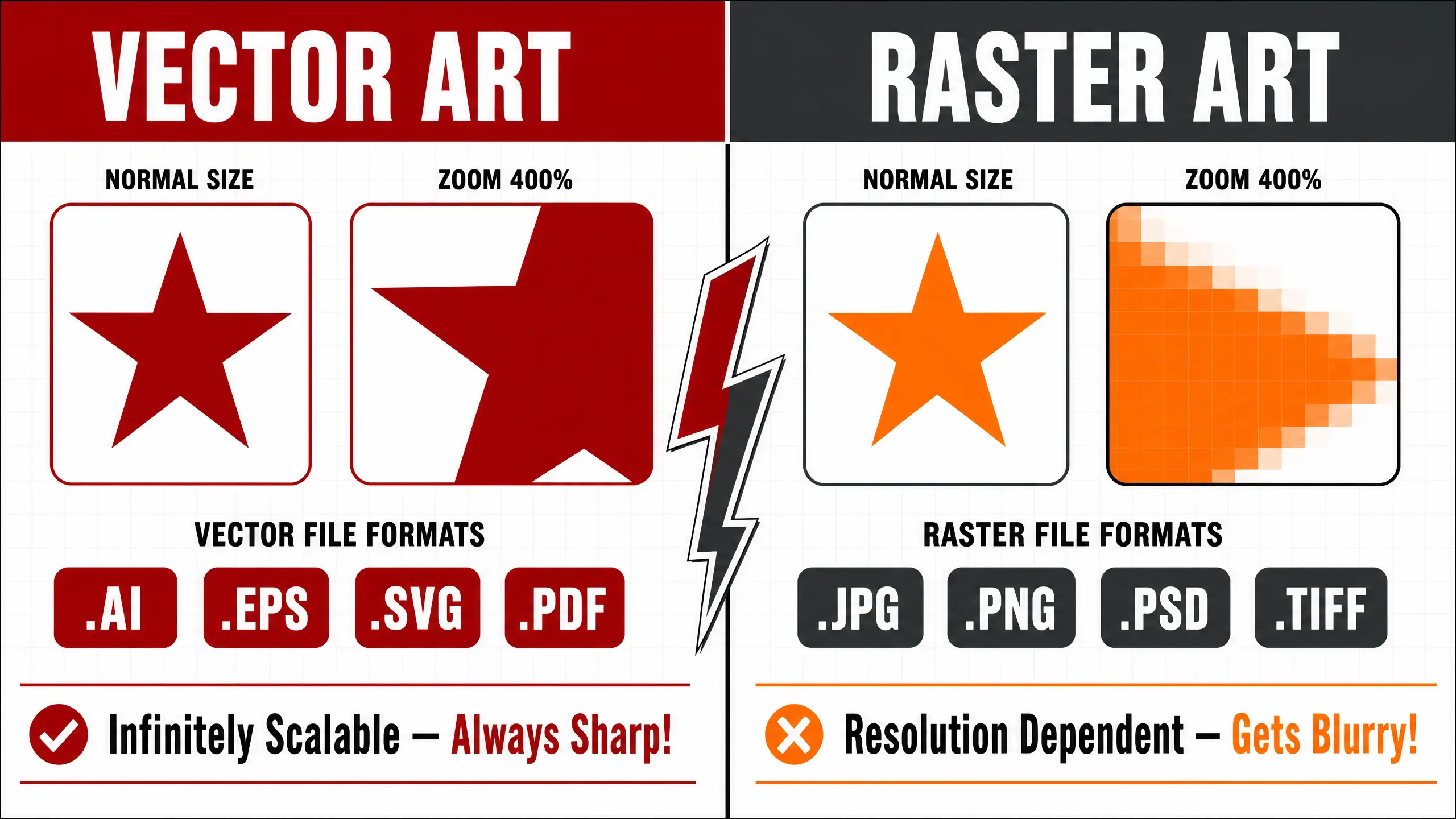
Vector files use mathematical equations to define shapes, lines, and curves. Think of it like giving the computer a recipe: “draw a circle with a 2-inch radius, fill it red.” No matter how big you make it, the computer just recalculates — and it’s always perfect.
- ✅Scales from business card to billboard — zero quality loss
- ✅Crisp, clean edges on every shape and letter
- ✅Easy to separate colors for screen printing
- ✅Smaller file size for simple artwork
- ✅Fully editable — colors, shapes, text, everything
- ✅The gold standard for logos and print art
Raster Art
Built with pixels — resolution dependent
Raster files are made up of a fixed grid of tiny colored squares called pixels. Zoom in far enough and you’ll see the individual dots. The more pixels packed in (higher DPI/PPI), the sharper the image — but there’s a hard ceiling. Enlarge it too much and it gets blurry and blocky.
- ⚠️ Quality depends on resolution (DPI) — higher is betters
- ⚠️ Enlarging causes pixelation and blurry edges
- ⚠️ Great for photos and complex gradients
- ⚠️ Minimum 300 DPI required for print quality
- ❌ Cannot be used for vinyl cutting
- ❌ Difficult to color-separate for screen printing
Try It Yourself — Drag to Zoom!
Use the slider below to simulate zooming in on both a vector and raster version of the same design. Watch what happens!
Drag the slider right to zoom in. Notice how the vector stays crisp while the raster gets blocky!
5 Reasons Vector Art Wins Every Time
Still not convinced? Here’s exactly why your printer will love you (and your order will go faster) when you send vector files.
Scales to Any Size
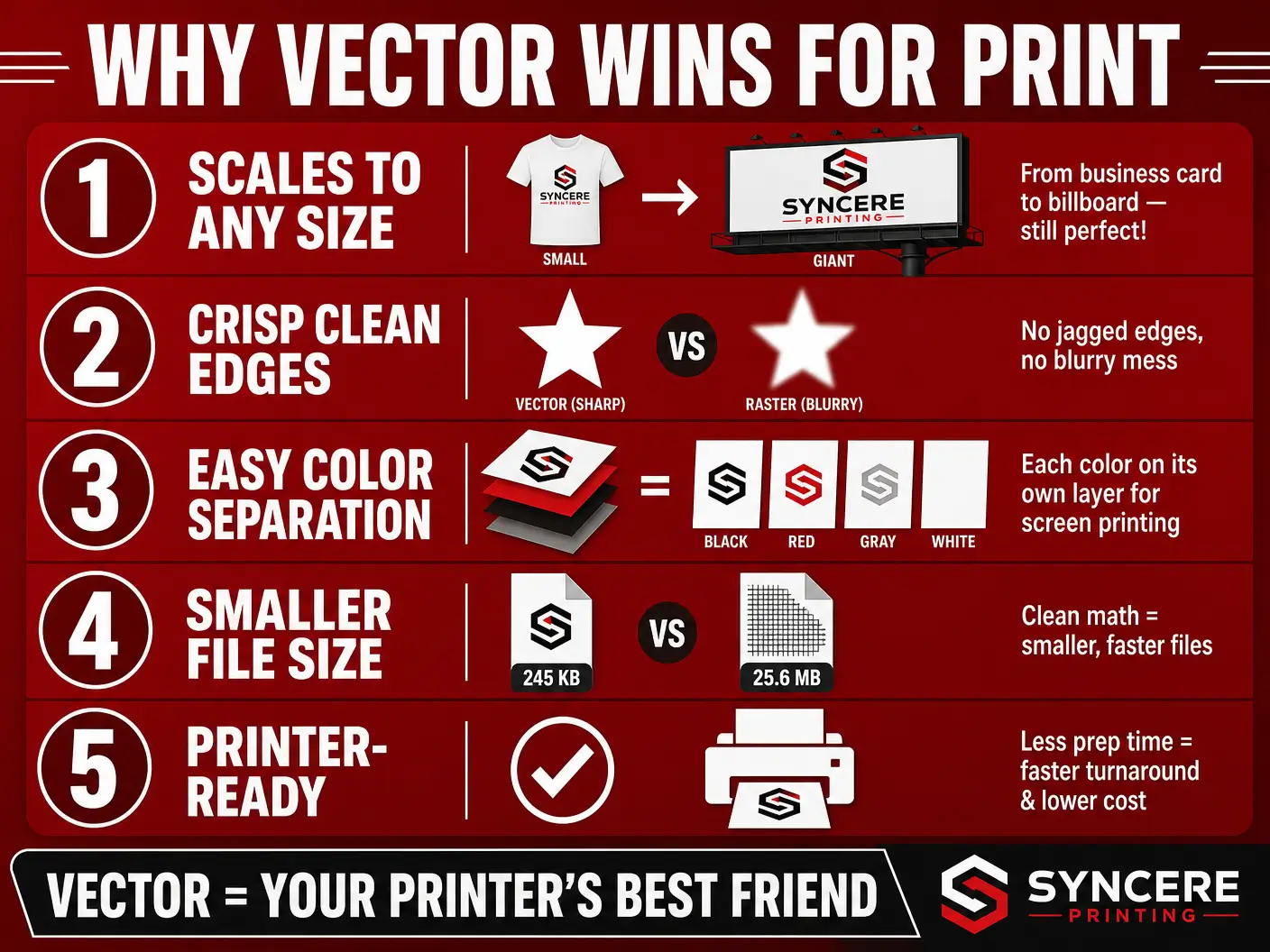
From a tiny pen logo to a 10-foot banner — vector art looks perfect at every single size. No re-creating, no re-scanning, no drama.
Clean Color Separation
Screen printing requires each color on its own layer. Vector files make this easy — each shape is already a clean, separate object.
Faster Turnaround
When your art is print-ready, we skip the “fix-up” step entirely. That means your order moves faster — sometimes same-day setup.
Saves You Money
Art prep fees apply when we have to fix or redraw your file. Send us a clean vector and you skip that charge completely.
Works for ALL Methods
Screen printing, DTF, sublimation, vinyl — vector art is accepted and preferred by every single print method we offer.
Art Specs by Print Method
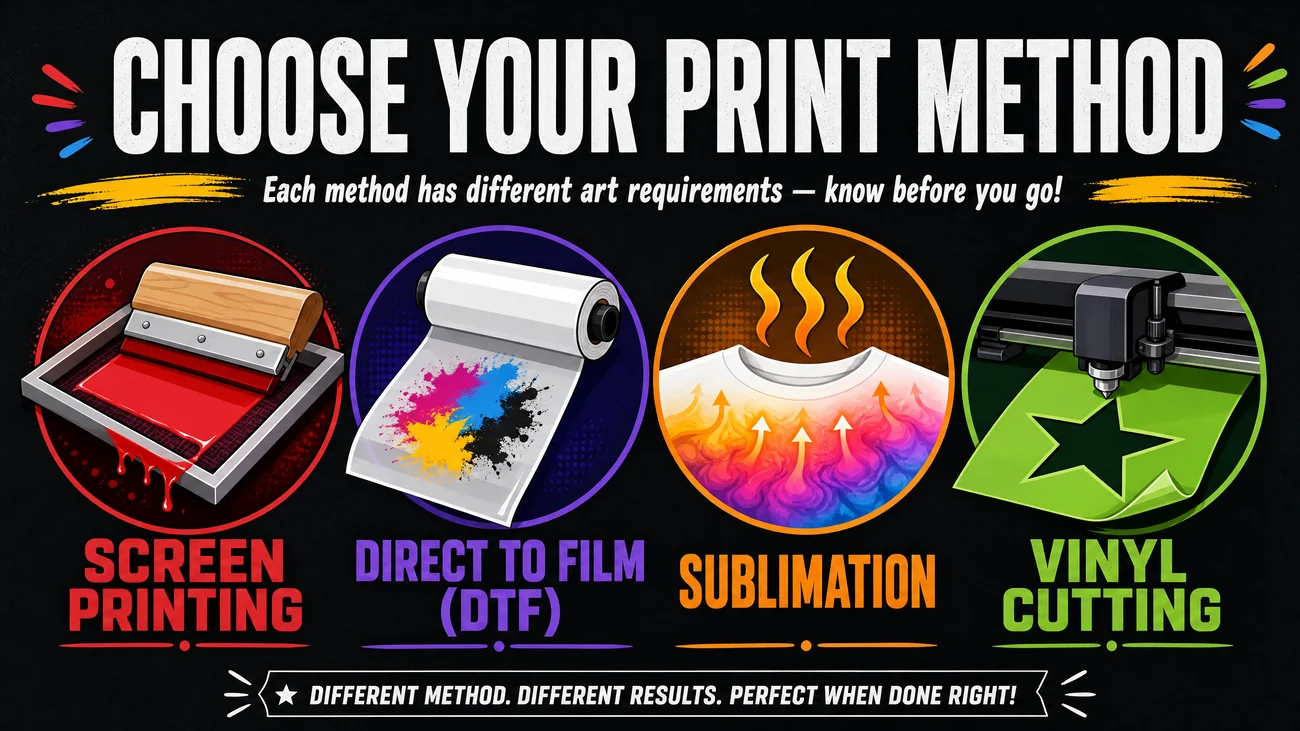
Each printing method has its own rules. Click a tab below to see exactly what your art needs to look like for that process.
Screen Printing
Best for: Bulk Orders · Bold Colors · Long-Lasting Prints
The OG of apparel decorating. Ink is pushed through a mesh screen (one per color) directly onto the garment. The result is vibrant, durable, and cost-effective for larger quantities. But it requires clean, separated artwork — and vector is king here.
Preferred File Format
.AI · .EPS · .SVG · .PDF
Vector files only — raster requires conversion
Color Mode
Spot Colors (PMS)
Each color = one screen = one cost
Max Colors
1–8 Spot Colors
More colors = higher setup cost
Min. Line Thickness
0.5pt (1pt recommended)
Thinner lines may not print cleanly
Min. Text Size
8pt minimum
Smaller text may fill in or drop out
Gradients / Photos
Halftones required — discuss with us first
🔥 Pro Tips for Screen Printing Art
- Use Pantone (PMS) color numbers for exact color matching — don't just say "red"!
- Keep each color on its own layer in your file — no overlapping unless intentional
- If printing on a dark garment, a white underbase is needed — this counts as a color
- Convert all fonts to outlines/curves before sending — we may not have your font
- Fewer colors = lower cost. Simplify your design to save money on large orders
- Tell us the exact intended print size (e.g., "12 inches wide on chest")
✅ DO Send Us
- ✅Vector .AI or .EPS file
- ✅Separate layers per color
- ✅Outlined/converted text
- ✅PMS color callouts
- ✅Intended print dimensions
❌ DON'T Send Us
- ❌Low-res .JPG or .PNG screenshots
- ❌Designs with gradients or shadows
- ❌Files with fonts not converted to outlines
- ❌Designs with 10+ colors (talk to us first)
- ❌Blurry or pixelated images
Direct to Film (DTF) Printing
Best for: Full Color · Small Runs · Complex Designs · Photos
DTF is the cool new kid on the block. Your design is printed onto a special film, coated with adhesive powder, cured, then heat-pressed onto fabric. No color limits, no minimums, and it handles gradients and photos like a champ. The most flexible method we offer.
Preferred File Format
🎯 Pro Tips for DTF Art
- Always use a transparent background on your PNG — no white box around your design!
- Photos work great — just make sure they're at least 300 DPI at the intended print size
- No color limits! Go wild with gradients, shadows, and full-color artwork
- Tell us the exact size you want the transfer — we'll size it perfectly
- DTF works on cotton, polyester, blends, leather, and more — ask us about your garment!
- Convert fonts to outlines in vector files to avoid font substitution issues
✅ DO Send Us
- ✅PNG with transparent background
- ✅300 DPI at print size
- ✅Full-color artwork, photos, gradients
- ✅Vector .AI or .PDF (also great)
- ✅Intended print dimensions
❌ DON'T Send Us
- ❌PNG with a white background box
- ❌Low-res images (under 150 DPI)
- ❌Heavily compressed .JPG files
- ❌Tiny text under 6pt
- ❌Screenshots from your phone
Sublimation Printing
Best for: All-Over Prints · Polyester · Mugs · Drinkware · Full Color
Sublimation uses heat to turn solid dye into gas, which bonds directly into the fibers of the substrate. The result is a print that's literally part of the material — no cracking, no peeling, ever. The catch? It only works on white or light-colored polyester (or poly-coated hard goods).
Preferred File Format
Gradients / Photos
🌈 Pro Tips for Sublimation Art
- White areas in your design = no ink = shows the white of the garment. This is intentional!
- Use RGB color mode — CMYK colors will shift during the sublimation process
- For all-over designs, provide a template file sized to the exact garment dimensions with bleed
- Colors will appear slightly muted on-screen but pop beautifully after heat pressing — trust the process!
- Works on mugs, tumblers, mousepads, keychains, and more — ask us about compatible substrates
- Outline your fonts or embed them — missing fonts cause layout shifts
✅ DO Send Us
- ✅RGB color mode files
- ✅300 DPI at print size
- ✅Full bleed for edge-to-edge designs
- ✅Vibrant, full-color artwork
- ✅Garment template if available
❌ DON'T Send Us
- ❌CMYK files (colors will be off)
- ❌Designs intended for dark garments
- ❌Low-res images (under 150 DPI)
- ❌Designs without bleed for all-over prints
- ❌Cotton-only garments (won't work!)
Vinyl Cutting (HTV)
Best for: Names & Numbers · Simple Logos · Single Colors · Hats
Heat Transfer Vinyl (HTV) is cut from sheets of colored vinyl using a precision plotter, then heat-pressed onto garments. It's clean, durable, and great for simple designs — but it has the strictest art requirements of all. Vector is not just preferred here — it's mandatory.
.AI · .EPS · .SVG · .PDF
Vector files only — raster requires conversion
Min. Line Thickness
Min. Text Size
✂️ Pro Tips for Vinyl Cutting Art
- Vector ONLY — if your file isn't vector, we'll need to redraw it (art fee applies)
- Keep it simple! Vinyl works best with bold, solid shapes and minimal detail
- Convert ALL fonts to outlines/curves — this is critical for vinyl cutting
- Intricate designs with many small pieces are hard to weed — consider simplifying
- Each color layer is a separate piece of vinyl — more colors = more layers = more cost
- Great for names, numbers, simple logos, and team uniforms with consistent designs
✅ DO Send Us
- ✅Vector .AI, .EPS, or .SVG file
- ✅All text converted to outlines
- ✅Simple, bold solid shapes
- ✅Separate layer per color
- ✅Minimum 10pt text size
❌ DON'T Send Us
- ❌Any raster file (.JPG, .PNG, .PSD)
- ❌Designs with gradients or shadows
- ❌Extremely fine details or thin lines
- ❌Text that hasn't been outlined
- ❌Photographic or complex artwork
Format Reference
Know Your File Formats
Not all file types are created equal. Here’s your quick-reference guide to what each format means — and how print-ready it really is.
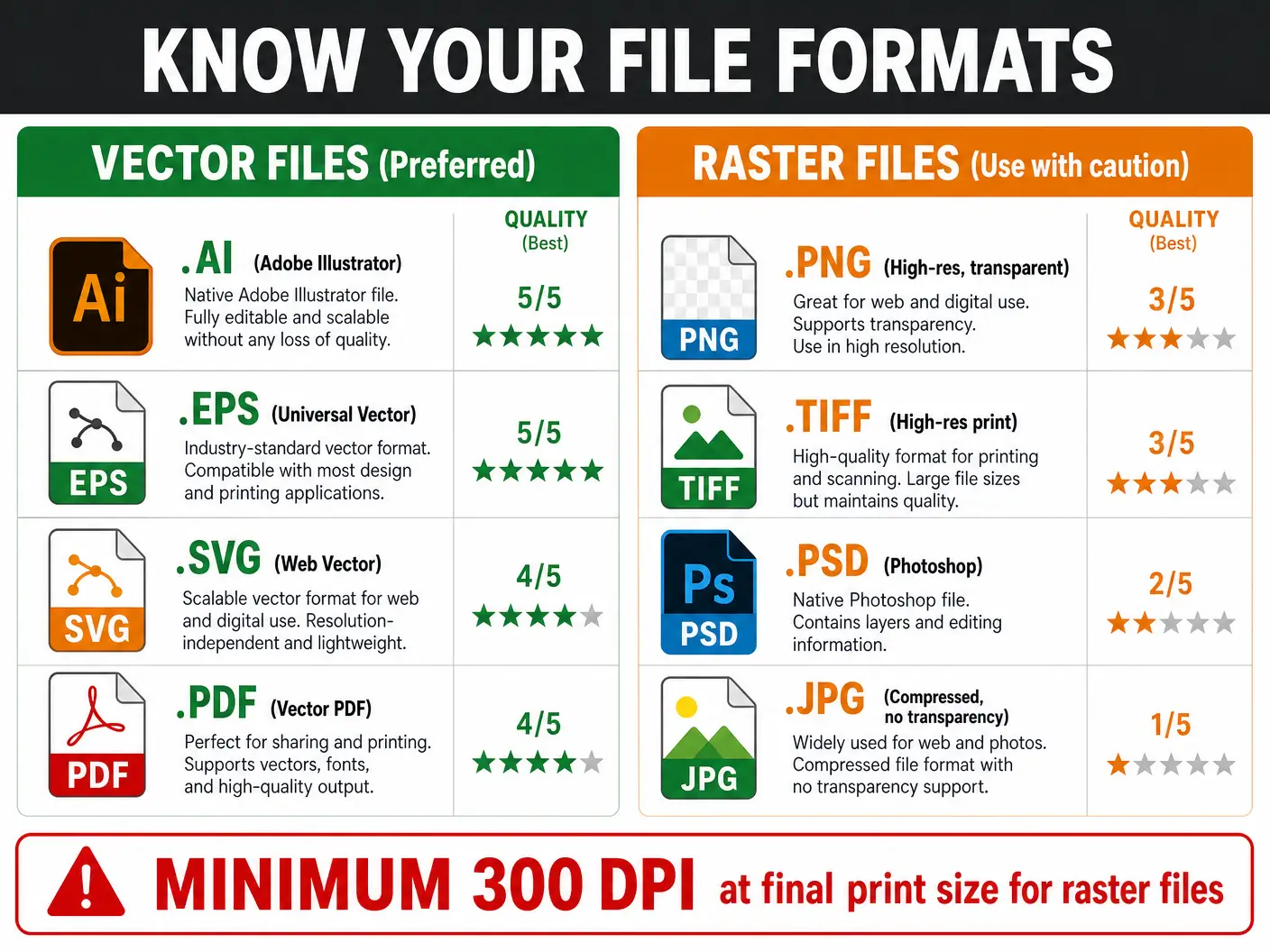
Quick Comparison: All Four Methods
Use this table as your cheat sheet when deciding which print method is right for your project — and what art you need to prepare.
| Requirement | Screen Printing | DTF | Sublimation | Vinyl Cutting |
|---|---|---|---|---|
| Vector Required? | Strongly Preferred | Optional | Optional | MANDATORY |
| Raster Accepted? | 300 DPI only | Yes (300 DPI) | Yes (300 DPI) | Never |
| Full Color Support | Spot colors only | Unlimited colors | Unlimited colors | Spot colors only |
| Gradients OK? | No (halftone only) | Yes | Yes | No |
| Photos OK? | No (halftone only) | Yes | Yes | No |
| Dark Garments? | Yes (with underbase) | Yes | No (light poly only) | Yes |
| Min. Text Size | 8pt | 6pt | 6pt | 10pt |
| Color Mode | Spot / PMS | RGB or CMYK | RGB only | Spot colors |
| Best For | Bulk orders, bold logos | Small runs, full color | All-over, drinkware | Names, numbers, simple logos |
Pre-Flight Checklist
Is Your Art Print-Ready?
Before you send us your file, run through this checklist. Check off each item to make sure your art is set up for success — and your order ships on time!
Screen Printing
Direct to Film (DTF)
Sublimation
Vinyl Cutting
Got Questions?
Frequently Asked Questions
We hear these questions all the time. Here are the answers — no judgment, we promise. We were all beginners once!
🤔 I only have a .JPG of my logo. Can you still print it?
Maybe! It depends on the resolution and size of your .JPG. If it’s at least 300 DPI at the intended print size, we can often work with it for DTF or sublimation. However, for screen printing or vinyl cutting, we’ll need to redraw it as a vector file — which is a service we offer. Just know that an art prep fee may apply. The best solution? Ask us to create a proper vector version of your logo once, and you’ll have it forever!
📱 Can I send a photo I took of my design on my phone?
We love the enthusiasm, but phone photos almost never work for print. They’re typically 72 DPI (screen resolution), have uneven lighting, shadows, and distortion from the camera angle. For a clean print, we need a proper digital file. If you drew something by hand that you love, we can digitize and vectorize it for you — just ask!
🖥️ What software creates vector files?
Adobe Illustrator is the industry standard and what most professional designers use. CorelDRAW is another popular option. If you’re on a budget, Inkscape is a free, open-source vector editor that works great. For quick logos, Canva Pro can export SVG files, though they’re not always as clean as Illustrator files. If you’re not sure what you have, just send it to us and we’ll take a look!
🎨 My designer gave me a .PDF — is that vector?
It might be! PDFs can contain either vector or raster content (or both). A PDF exported from Adobe Illustrator or InDesign is usually vector and works great. A PDF created by scanning a document or exporting from Photoshop is raster. The easiest way to tell: try zooming in to 1000% in a PDF viewer — if it stays crisp, it’s vector. If it gets blurry, it’s raster. When in doubt, send it to us and we’ll check!
💸 Will I be charged extra if my art isn't print-ready?
If your file needs significant work to make it print-ready — like redrawing a logo from scratch, color-separating a raster image, or cleaning up a messy file — we do charge an art preparation fee. The fee depends on the complexity of the work. Simple fixes are often free or very low cost. The best way to avoid fees? Use this guide to send us a clean file from the start! And if you’re not sure, just ask us before submitting — we’re happy to review your file for free.
🖨️ Which print method is best for my project?
Great question — and the answer depends on several factors: your design complexity, quantity, garment type, and budget. Here’s a quick rule of thumb: Screen printing is best for large quantities with simple designs. DTF is best for small quantities, full-color designs, or when you need flexibility. Sublimation is best for all-over prints and white polyester items. Vinyl is best for simple names, numbers, and logos on small quantities. Still not sure? Call or text us — we’ll help you pick the right method for your project!
🔤 What does "convert text to outlines" mean?
When you type text in a design program, it uses a font file installed on your computer. If we open your file and don’t have that same font installed, the text will change to a default font — ruining your design. “Converting to outlines” (also called “converting to curves”) turns your text into vector shapes, so it looks exactly the same on any computer, no font required. In Adobe Illustrator: Select All → Type → Create Outlines. In CorelDRAW: Select All → Arrange → Convert to Curves. Always do this before sending your file!
Ready to Print Something Legendary?
Now that you’re an art file expert, let’s put those skills to work. Send us your vector file and let’s create something awesome together!